
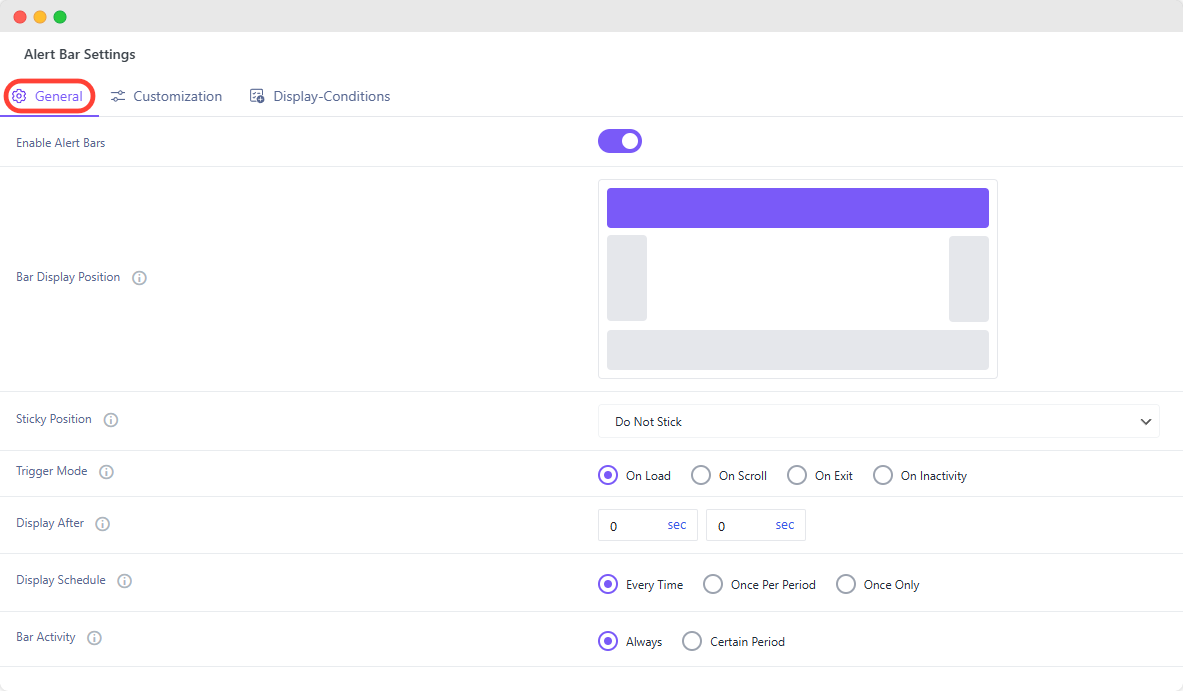
The General Settings panel is where you control the core behavior of your alert bar.
Enable Alert Bar: Turn this switch on to make the bar active. If disabled, the bar will not appear on the site.
Display Position: Choose where the alert bar should appear on the screen — Top, Bottom, Left, or Right.
Sticky Option: Decide if the bar should remain fixed in place as the user scrolls (Stick to Top or Stick to Bottom), or if it should move with the page (Do Not Stick).
Trigger Options
Define what action should cause the alert bar to appear. Options include:
- On Load – Display immediately when the page loads (optionally with a delay).
- On Scroll – Display after the user scrolls a certain percentage of the page.
- On Exit – Trigger when the mouse moves toward the top of the browser window.
- On Inactivity – Show after the user has been idle for a set period.
- Each trigger will expand with its own additional controls, so you can customize how it behaves.
Scheduling & Activity
For advanced control, you can manage when and how often the bar is shown:
- Display Schedule – Show the bar every time, once only, or once per chosen period (e.g., once per day).
- Bar Activity – Keep the bar active indefinitely (Always), or set a defined start and end date for time-sensitive campaigns.