
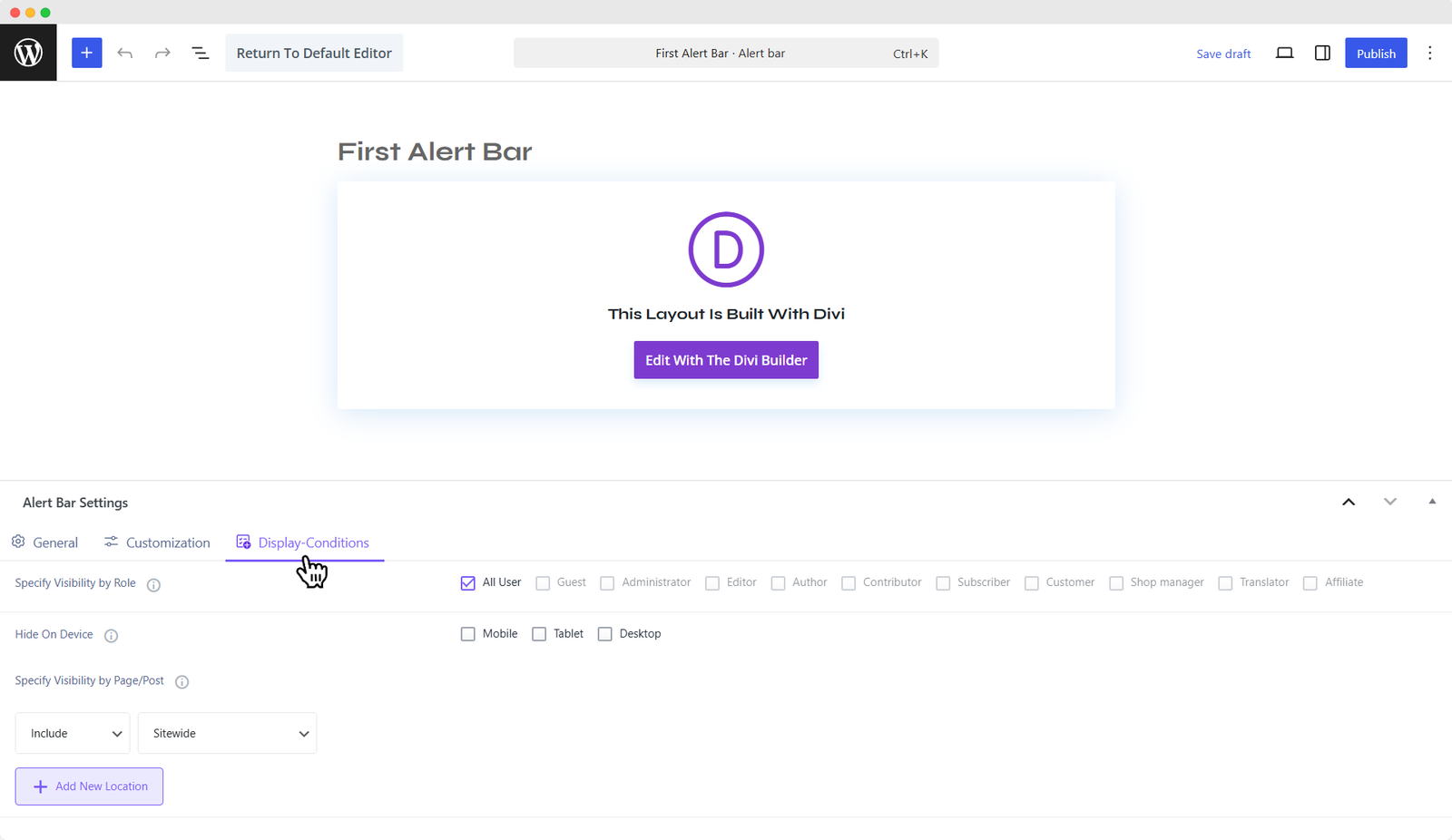
The Display Conditions settings allow you to control exactly who sees your alert bar, on which devices, and on which pages. This ensures your messages reach the right audience without being intrusive.
Key Options
Specify Visibility by Role
Choose which user roles can see the alert bar; available options are: All Users, Guest, Administrator, Editor, Author, Contributor, Subscriber, Customer, Shop Manager, Translator, Affiliate.
Example: Show the bar only to Guests for a sign-up promotion, or only to Customers for special offers.
Hide on Device
Control visibility across different devices.
- Options: Mobile, Tablet, Desktop.
- Example: Hide the bar on mobile for a cleaner mobile experience while keeping it visible on desktop.
Specify Visibility by Page/Post
Choose where the alert bar should appear on your website.
- Include or Exclude specific pages, posts, or sitewide.
- You can also add multiple locations with Add New Location.
So, the Display Conditions settings ensures that your announcements remain relevant, targeted, and non-intrusive, while still maximizing engagement.
ℹ️ At DiviNext, we are always looking to improve both our products and our documentation. If you have any feedback for new features, suggestions for improving this guide, or if you encounter any issues while using Alert Bars, we’d love to hear from you. Please don’t hesitate to reach out to our support team—we’re here to help!