

Installing the AlertBars plugin follows the standard WordPress plugin installation process.
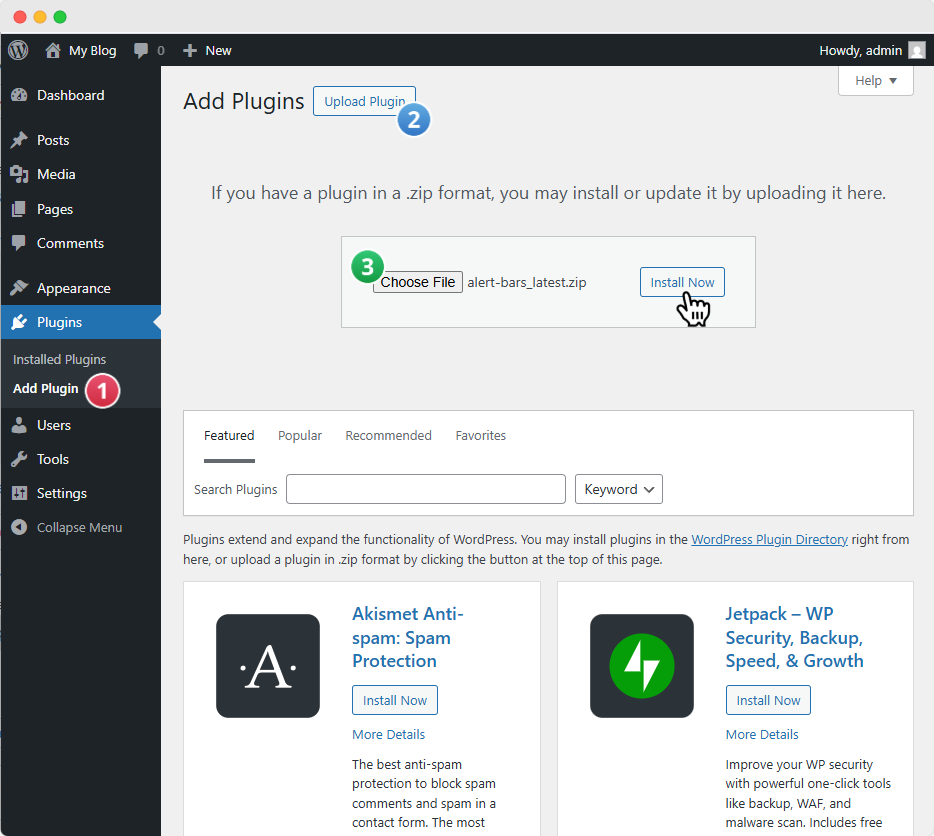
- In your WordPress Dashboard, navigate to Plugins → Add New.
- Click on the Upload Plugin button at the top of the page.
- Select and upload the AlertBars plugin .zip file from your computer.
- Once the installation is complete, click Activate Plugin to enable it on your site.
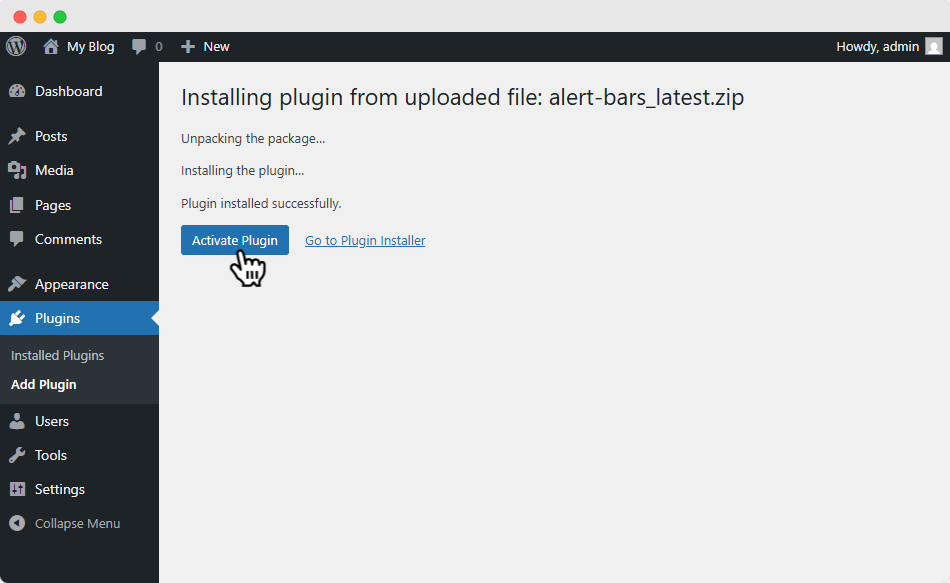
Once activated, you will notice a new “AlertBars” menu item added to your WordPress Dashboard. You will also see a prompt at the top of the dashboard that says:
“The Alert Bars API Key has not been activated. Click here to activate Alert Bars.”
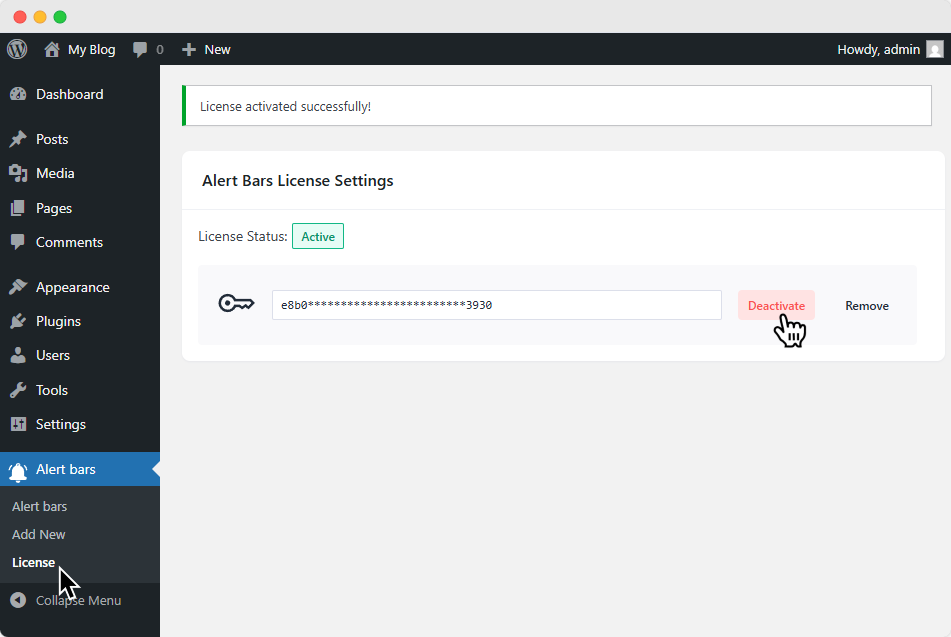
Before getting started, you must activate your AlertBars License Key. You can do this directly from the prompt at the top of the dashboard or by navigating to AlertBars → License in the sidebar menu.
ℹ️ Note: If you purchased the plugin from the Elegant Themes Marketplace, you will not see a license option and do not need to activate the plugin with a separate license key. In this case, simply make sure your Divi Theme is activated with a valid license key for everything to work correctly.