

Creating alert bars with Divi gives you endless customization possibilities. You can design stunning alert bars using the full power of the Divi Builder, adjusting every detail to match your site’s style. To make things even easier, AlertBars also includes a collection of pre-made layouts. These layouts save time, ensure creativity, and provide a quick way to add professional designs. Simply choose a layout, customize it if needed, and save.
Before you can start, you need to enable AlertBars within the Divi Builder:
Enable AlertBars for Divi Builder
- Go to your WordPress Dashboard → Divi → Theme Options → Builder → Post Type Integration.
- Enable AlertBars and click Save.
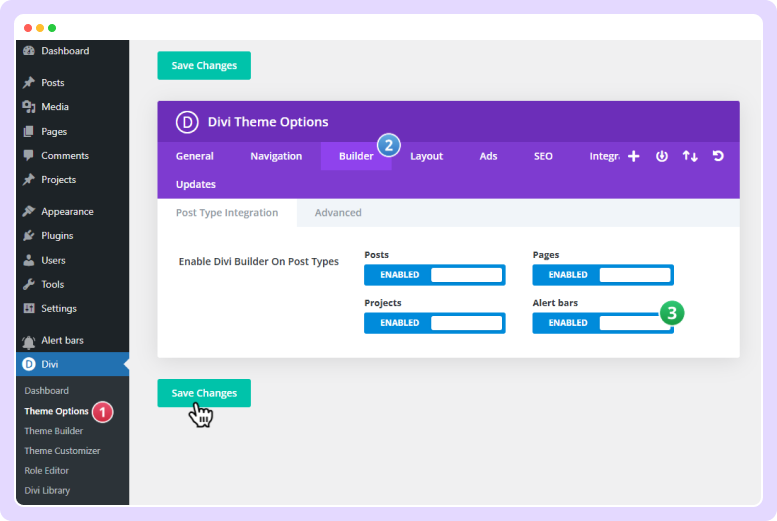
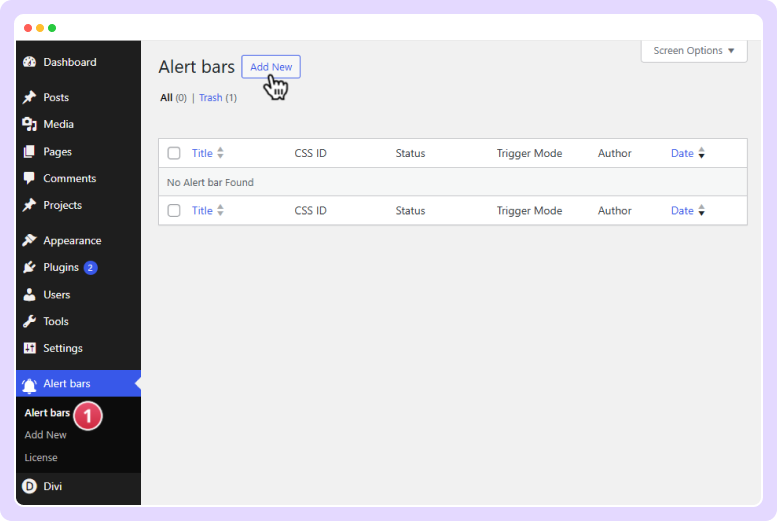
Add a New Alert Bar
- From your WordPress Dashboard, navigate to Alert Bars → Add New.
- This will open a new editor page (WordPress/Gutenberg editor).
- Enter a Title for your alert bar (e.g., First Alert Bar).
- Since you’ve enabled AlertBars Post Type Integration, you will also see the option “Use Divi Builder.”
Configure Alert Bars Settings
Before designing, you can configure the essential display settings found below the editor:
- Position: Choose where to display the bar (top, bottom, left, right).
- Trigger Mode: Set how the bar appears (on page load, on click, on exit intent, on scroll, or on inactivity).
- Other Options – Adjust additional behavior settings as needed.
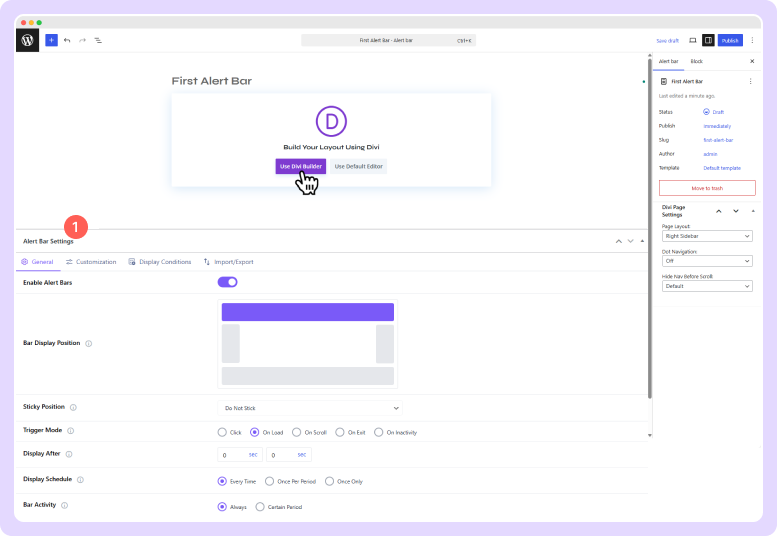
Once you’ve configured the AlertBars settings, the next step is to launch the Visual Builder to design your first alert bar using Divi.
Launch the Visual Builder
- Click on Use Divi Builder to start designing.
- You’ll be prompted to choose how to create your alert bar:
- Build From Scratch – Design your own layout entirely.
- Choose a Pre Made Layout – Select from ready-to-use templates in the Alert Bars library.
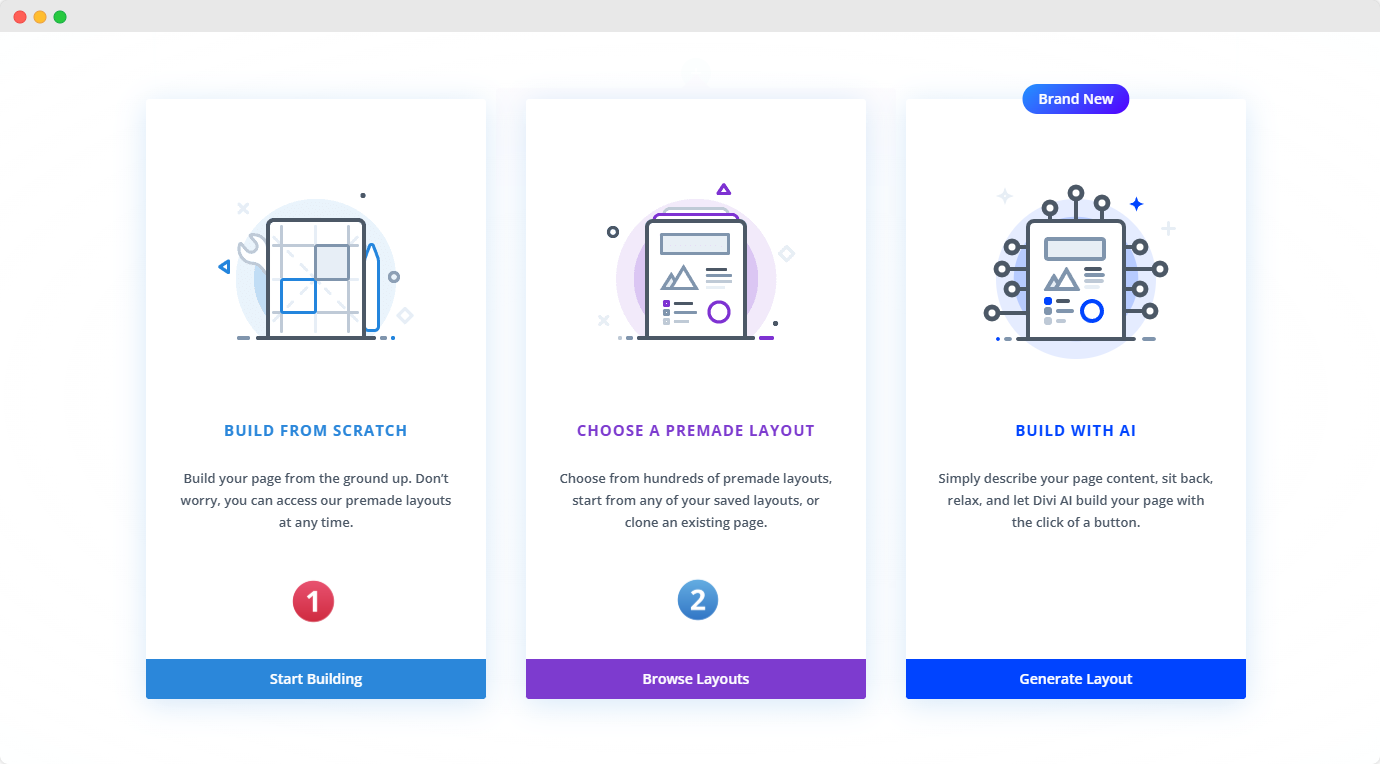
Use Pre-Made Layouts
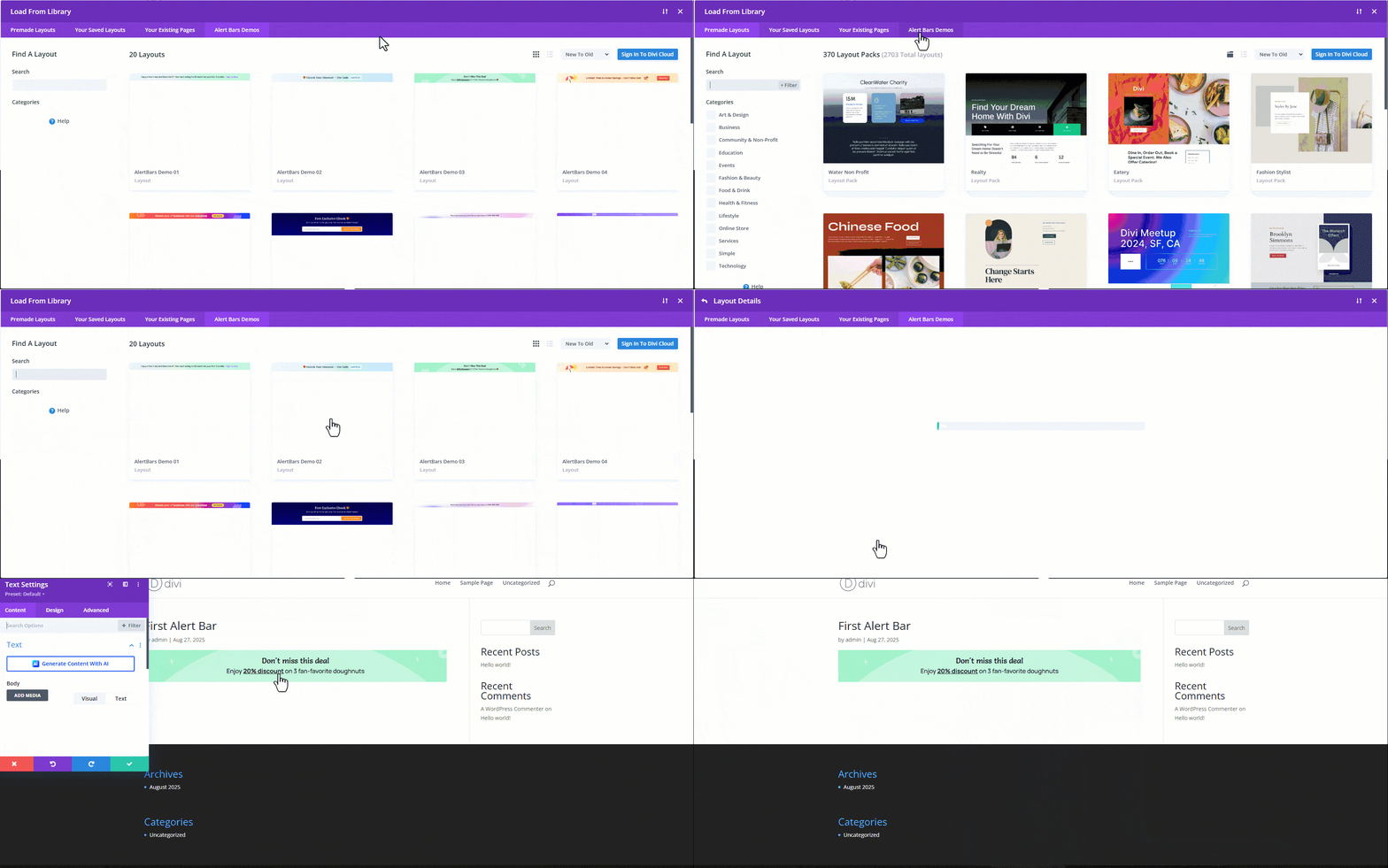
- If you select Use Pre-Made Layouts, navigate to the Alert Bars tab in the layout library.
- Browse through the available alert bar designs.
- Click Use Layout on the design you want to apply.
- Once loaded, you can customize all elements (text, colors, buttons, shapes) to match your needs.

ℹ️ Note: AlertBars is compatible with Divi 5 Alpha and works the same way as in Divi 4. Please keep in mind that pre-made layouts are not yet available in Divi 5, but you can still design and publish your own Alert Bars using the Divi 5 builder.